How to test your connection — properly.
We don't run a speed test on this site, and that's deliberate. A plain speed test only tells you half the story — and there are already excellent free tests that do the job better. Here's which tests are useful for which problems, and how to read them.
Traditional speed tests were built to measure throughput — for years the easiest way to compare one connection against another. But with streaming, cloud services and video calls, how the line behaves under load often matters just as much.
A speed test alone can mislead you
The same connection, measured two ways in the same minute.
Full plan speed, low ping. By this measure nothing is wrong — which is exactly why a speed test on its own can fool you.
Raw speed is fine, but latency balloons the moment the line is busy — so calls stutter and games lag exactly when something else is downloading.
Same connection, same minute. The speed test measures how fast the line can move data; the quality test also measures what happens to latency while the line is busy — and that's what you feel in calls and games. The headline number was never the whole story.
Which test should you use?
Short version: if you just want to confirm you're getting the plan speed you pay for, a mainstream speed test is enough. If the speed looks fine but calls or games still stutter, the LibreQoS quality test is the one that shows why. Either way, test on a cable first.
For real-world quality → LibreQoS
The one we use, and the one that produced the results above. It measures throughput and latency under load (bufferbloat) and scores how real apps will feel — browsing, streaming, calls, gaming. Open-source, ad-free, with a global set of servers that auto-picks the nearest. This is the test that better reflects how interactive applications behave under load, not just a headline number.
It comes in two modes. The standard test gives one clear overall grade plus an app-by-app readout — start here. The advanced test adds per-direction detail, breaking out your download, upload and bidirectional results as separate grades with the actual Mbps figures, which is handy when you want the up/down numbers spelled out rather than read off a graph. Bidirectional means loading the line both ways at once — uploading and downloading together, the way a real video call or game does; it's the toughest case, and usually where latency climbs highest. Standard test → · Advanced test →
For a raw speed number → Cloudflare, Ookla or Fast.com
If you just want to confirm you're getting the plan speed you pay for, any mainstream speed test works — speed.cloudflare.com (which also measures some loaded latency), speedtest.net, or fast.com. Whichever you use, let it pick the nearest server: a distant one inflates your ping and makes a healthy line look worse than it is. A consistently low result here suggests a problem between your device and your ISP, and often points to the line or the provider; a fine number here with stutter in real use points at load (run the LibreQoS test) or your own Wi-Fi or LAN.
Test on a wired computer if you can
Plug into the router with an Ethernet cable before testing. Over Wi-Fi you're partly testing your wireless, not your line — poor Wi-Fi conditions drag the result down and make a healthy connection look slow. Wired gives the clearest picture of what the connection itself can do — though even a wired path can be throttled by the hardware in between. No Ethernet port? A USB-to-Ethernet adapter works. Can only use Wi-Fi? Treat a poor result as "could be Wi-Fi or the line," then use the Wi-Fi guide to check.
Once you know what the tests are telling you, the symptom guides handle the rest — bufferbloat if latency spikes under load, the Ethernet and Wi-Fi guides if it's one room, one device or one cable, Path if one site or service is slow while the rest is fine, and Bandwidth if nothing's broken and the question is whether the plan is big enough.
Why your first test should be wired
Run the test on a cable first to get a clean baseline of what the line itself can do — then test over Wi-Fi. The gap between the two is your Wi-Fi penalty, and it tells you which side of the problem you're on.
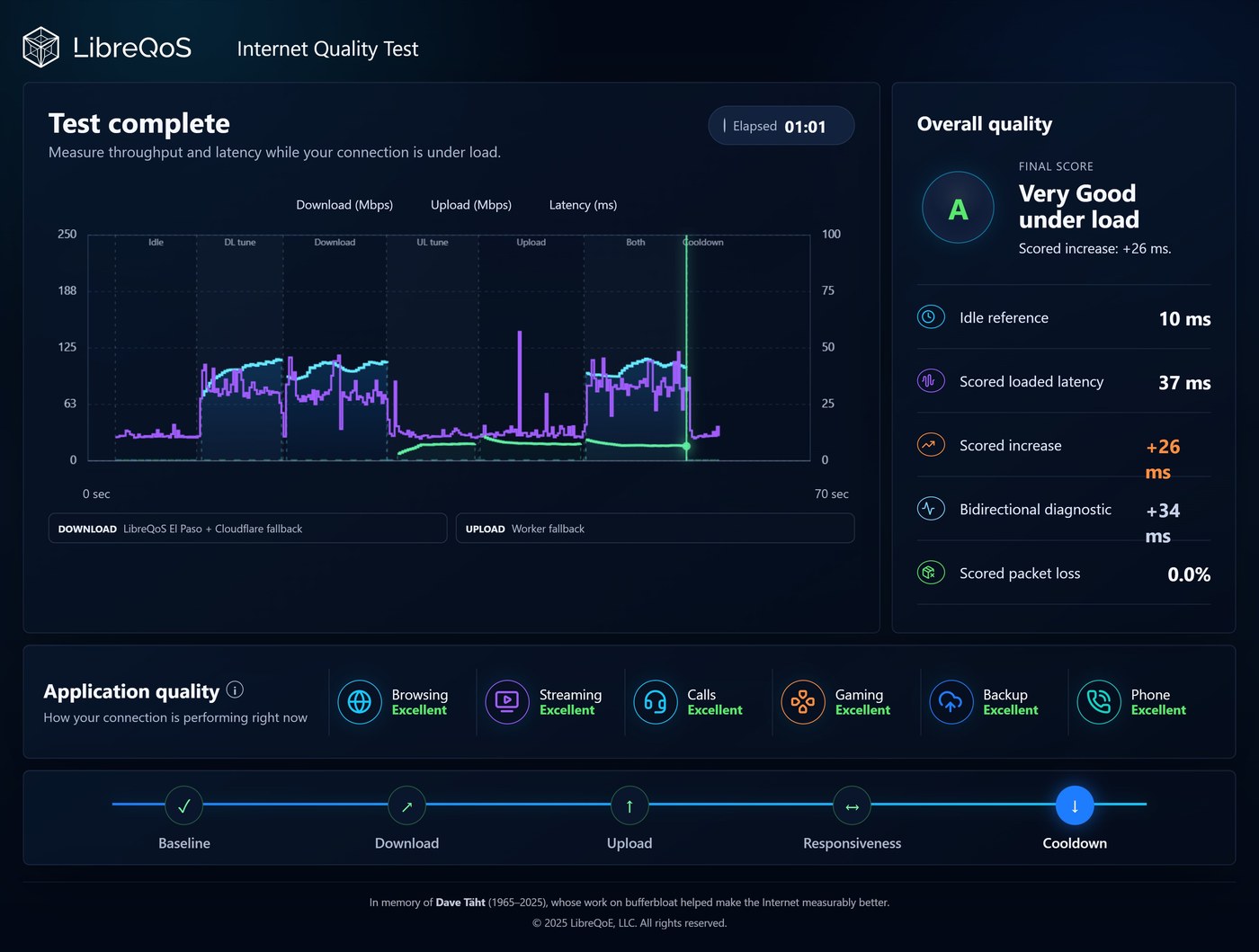
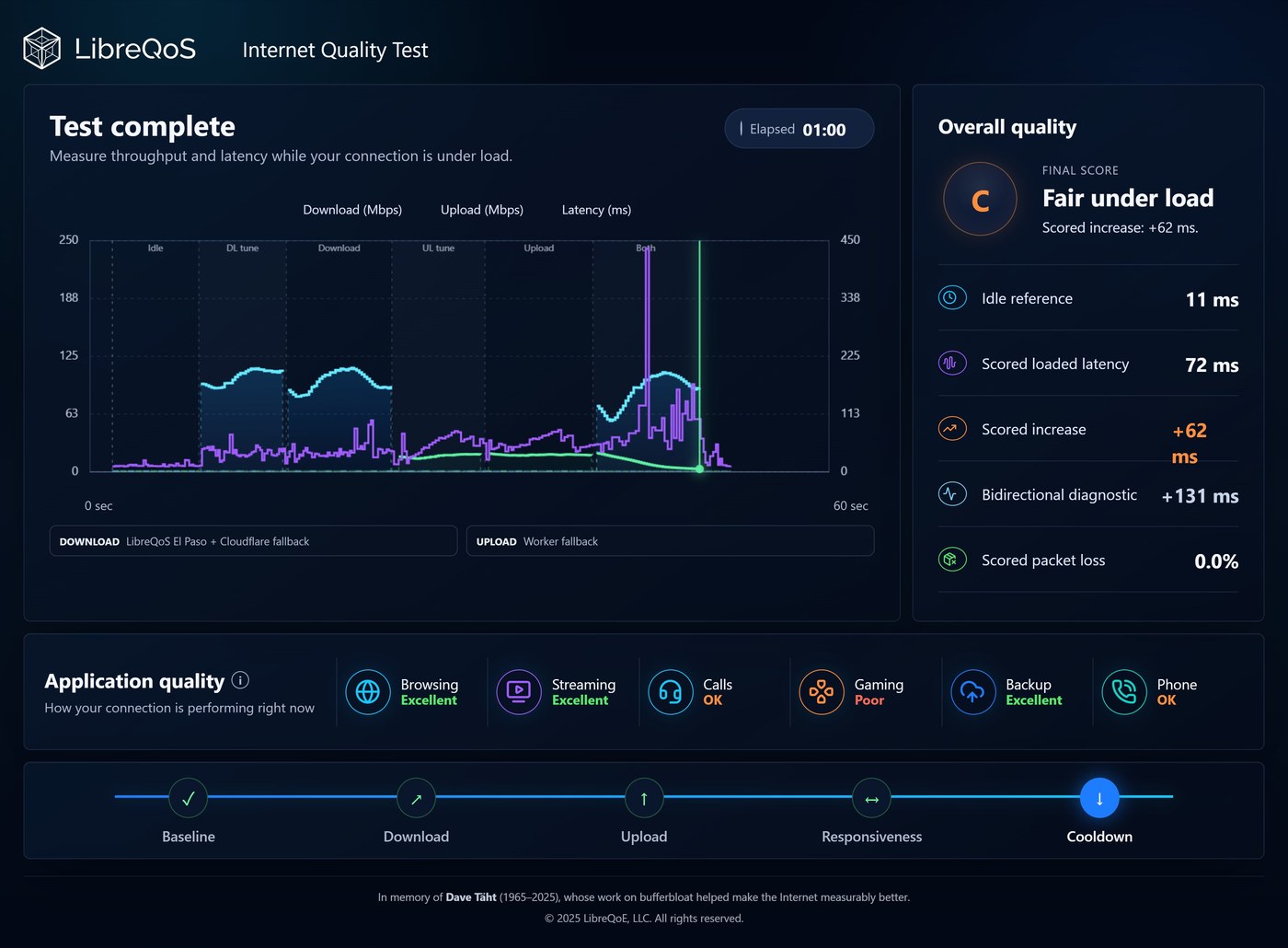
Same device, same spot, two minutes apart — only the cable changed. The idle pings match almost exactly (10 vs 11 ms), so the line is identical. But under load the Wi-Fi run nearly doubles loaded latency (37 → 72 ms) and almost quadruples the bidirectional figure (+34 → +131 ms), dropping the grade from A to C — and that's good Wi-Fi, two metres away with clear line of sight. Calls slip to "OK" and gaming to "Poor." Test on a cable first and you see what the line can truly do; anything worse over Wi-Fi is the air between you and the router, not your connection. Results from the LibreQoS Internet Quality Test.